What’s New in R2511
The following introduces the new services and features included in EnOS R2511.
Application Building
Application Portal
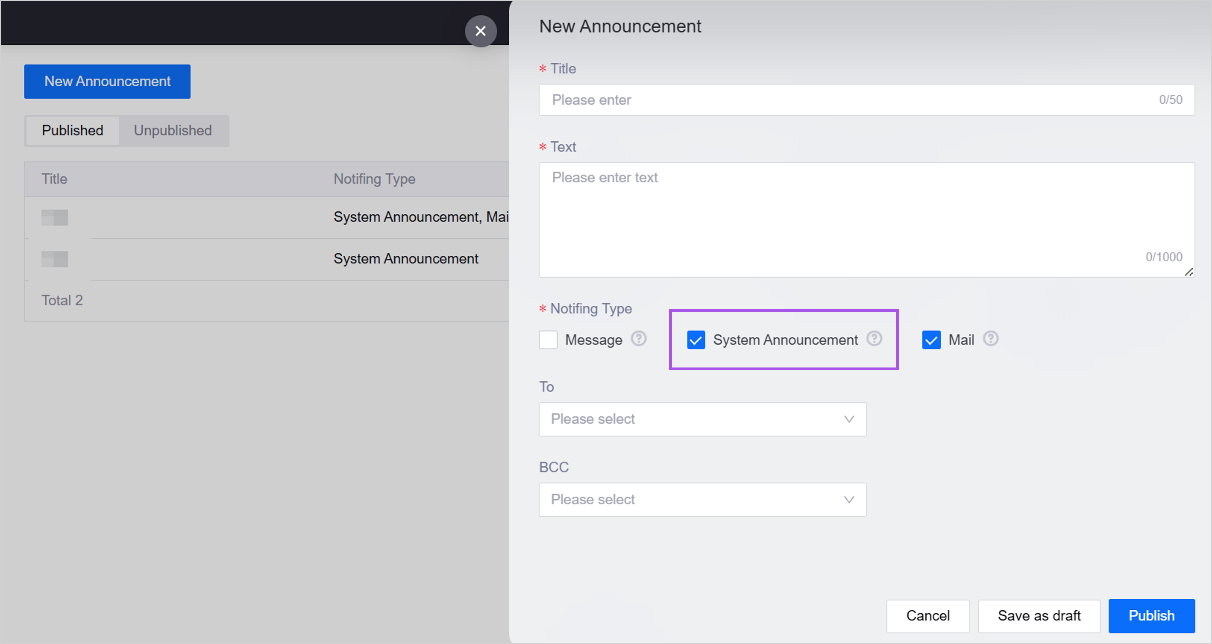
Added a System Announcement feature to the Announcements menu. OU administrators can configure announcements to be displayed to all OU users. Once configured, the announcement will be displayed in the lower right corner of the page, and all users can view the announcement content after logging in, ensuring that important information is delivered.
Added an Application Portal Logout Page. When the Identity Provider (IdP) has not configured an SSO login endpoint, the system will redirect to the Application Portal Logout Page, improving the experience of handling exceptions.
Added Role and User Group mapping fields to the Single Sign-On Configuration page in Domain Configuration. OU administrators can specify the “Role” and “User Group” fields in the user attributes provided by the IdP. After configuration, Application Portal will automatically synchronize user roles and user group permissions from the IdP.
User navigation modes and themes are now remembered by browser and automatically applied on subsequent logins.
OU administrators can configure blind copy (BCC) recipients to ensure information privacy when they send OU announcements via email.

Digital Twin Visualization
Added the following new features to the Single-Page Apps:
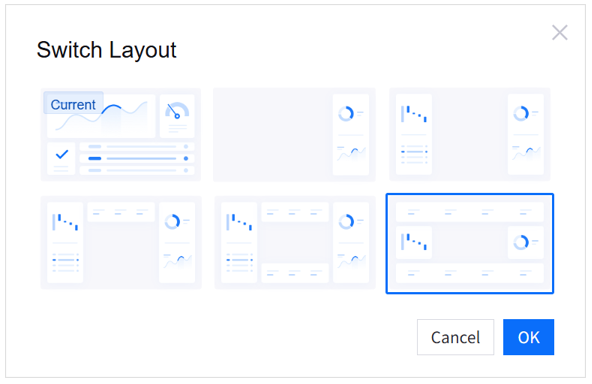
Added a new Top, Bottom, Left and Right layout to the Layer Layout in Canvas Configuration > Page Hierarchy > Configure Layer, providing another layout choice for page design.
In Navigation Configuration:
Added a new Top Tab navigator.
Added shortcut key control for the Bottom Tab navigator. Application developers can select Enable Keyboard Operation to enable tab-switching using the left and right arrow keys in runtime when the application page is full-screen displayed.
Added topology-based filtering capability to the Site & Device Filter. Application developers can set site and device selection to Single Selection and select Enable Topology Rules to allow the navigator to filter assets by the current OU’s topology rules in runtime. This enables users to first select an asset tree and then quickly locate specific device assets.
Added an Enable Select Template feature in Basic Configuration to control the display/hiding of the template switch button in runtime, providing flexible control over viewing and online editing permissions for page templates.
When it is enabled, a button will appear on the upper left of the page in runtime to allow switching templates. Users can edit the selected template.
When it is not enabled, only the OU template is displayed in runtime, and only users with permission to modify the OU template can edit it online.

Added the following features to the widgets of Dashboards and Single-Page Apps:
Now supports specifying the fields and order of data exported from widgets. In the Others tab of the widget configuration panel, application developers can customize the data content available for export at runtime.in the … Interaction configuration.
In Series Chart widgets:
Added Maximum Bar Width setting for bar chart, enabling flexible adjustment of visualization effects.
Now supports customizing color palettes in data comparison scenarios. In the Style > Series tab of the widget configuration panel, when enabling Comparison, application developers can now choose Custom Palette and use JSON to define colors for each data series in the widget.
Added Maximum Data Count in the Styles > Series tab of the widget configuration panel to enable control of the amount of data items displayed.
Extended supported types of in-widget marks. In the Style tab of the widget configuration panel, application developers can select Text or Text + Value for the Data Display Form in the Mark section and then enter custom text.
Table with Progress Bar now supports customizing color for the progress bar and the value figure respectively. In the Style tab of the widget configuration panel, after configuring the content color segment rule, application developers can clear the checkbox of Value Color Follow Progress Bar to specify another color for the value.
Progress Bar > Ranking List now supports customizing the Ranking Label Color. In the Style tab of the widget configuration panel, application developers can specify Ranking Label Color after selecting Show Rank Index in the Progress Bar section.
Widgets using the CDS data source now support empty state display. In the Request Parameters section in the Data tab of the widget configuration panel, application developers can enable Placeholder to ensure complete data visualization when no data is returned for the selected time range.
In-widget filter now supports sorting Additional Request Data Fields in ascending or descending order to improve information retrieval efficiency. In the Filter tab of the widget configuration panel, after adding data fields to Additional Request Data Fields in the Configure Filter drawer, application developers can define the default order as ASC or DESC.
Unified Monitoring
Added the UI Text Customization feature with multilingual internalization ability in Function Configuration > Basic Settings, allowing application developers to replace default terms with custom text.
In Common KPI Inquiry:
Now supports customizing which data fields are displayed. Application developers can select the required columns to display by selecting
 Edit Columns in the Select Data popup window.
Now supports specifying Total Row Position in Function Configurations > Basic Settings. A Total row appears when Time Interval Filter is enabled, and any non “Accumulated” option is selected. Application developers can choose to place the Total row at the top of each page or at the bottom of the last page.
In the Charting Tool, added Y-Axis Settings. In More > 3. Select Display Style > Y-Axis Settings, application developers can select Settings to configure up to 4 Y-Axis, including setting their position, axis range, etc.
Work Management
Added the quick selection options to the time picker on the Work Order and Service Request creation pages. Users can now quickly select 15, 30, or 45 minutes, improving the creation efficiency.

Fleet Control
Added the UI Text Customization feature in the following menus, allowing application developers to replace default terms such as “Site” with custom text. For example, “Site” in the interface can be changed to “Store” to better fit the business scenario:
Device Control
Batch Control
Site Control
Schedule Control
Condition Control
Control Log

Data Management
Common Data Service
In Virtual Properties and Virtual Points, application developers can now export files of virtual properties and virtual points and import them into EnOS 3.0.0 directly, making data migration and version compatibility more convenient.
Device Connectivity
Alarm Management
Japanese is now available in Alarm Notification > Notification Rule List > Edit Notification Rule > Notification Settings > Language.