Unit 3: Developing a Batch Processing Workflow
EnOS Batch Processing service enables you to process data through scheduling workflows, which consists of various types of tasks that can run data synchronization, Shell scripts, Python scripts, and external applications.
In this unit, prepare Python script with the SDK provided by EnOS for writing data to TSDB, upload the Python script file as job resource, and then develop a batch processing workflow with a Python task node to run the Python script.
Preparing Python Script
Use the SDK provided by EnOS to prepare Python script for writing data to TSDB. Refer to the following example:
from Msg import MsgBuilder,MeasurepointBuilder

import batchTSDBWriter

def main():
    mp1 = MeasurepointBuilder.builder().add_measurepoint("mem_used", 92.8871579271854).add_measurepoint("cpu_used", 48.6415463007949).set_timestamp(1596528600000)

    #Provide the OU ID, model ID, and asset ID.
    #Use add_payload to upload the measurement point data.
    msg = MsgBuilder.builder("o15520323695671","Computer","vdVrfmo2").add_payload(mp1)

    #str(msg) is the message to be sent to Kafka.
    #The first parameter is of Boolean type. When False is specified, measurepoints will not be validated.
    #The second parameter is of Boolean type. When False is specified, assetId will not be validated.
    #The length of message must not exceed 3000 bytes.
    res = batchTSDBWriter.send_data(str(msg),True,True)

    if res == 0:
        return 0
    else:
        return -1
In the Python script, batchTSDBWriter is the SDK provided by EnOS for writing measurement point data in batch to TSDB. It supports adding data of measurement points of specified device. You will need to provide the measurement point IDs, measurement point values, timestamp (optional), your organization ID, the device model ID, and the device asset ID. For more information about using the SDK, see Accessing Data Sources by Python.
Save the Python script as point_data.py.
Creating a Job Resource
Take the following steps to create a job resource with the point_data.py file.
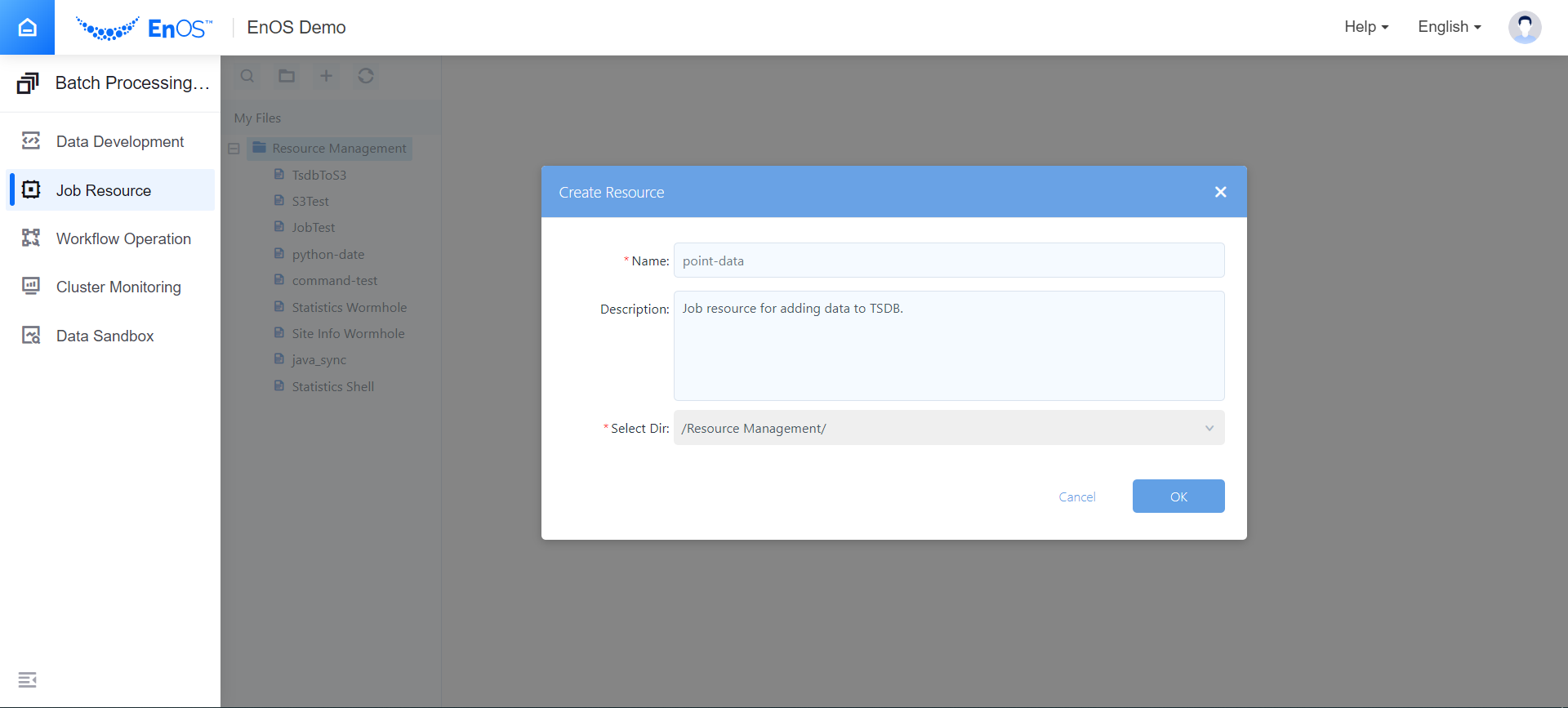
Log in EnOS Management Console and select Batch Processing > Job Resource from the left navigation menu and click Create Resource.
In the Create Resource window, provide the basic settings for the resource, and click OK.
In the Overview page, click the New Version button to upload the job resource file:
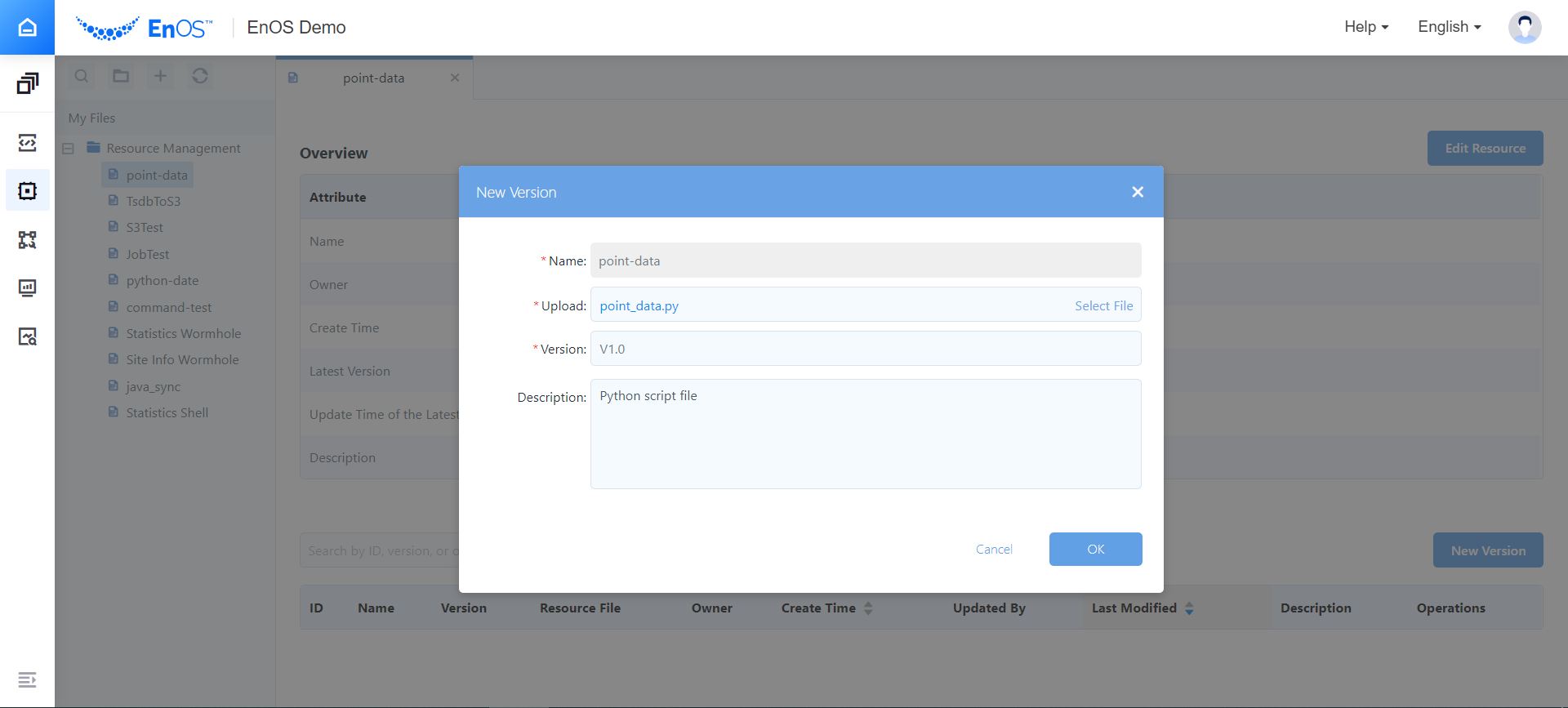
Click OK.
Developing a Workflow
Take the following steps to crate a workflow with Python task node:
Log in EnOS Management Console and select Batch Processing > Data Development.
Click the + icon to create a workflow. See the following example:
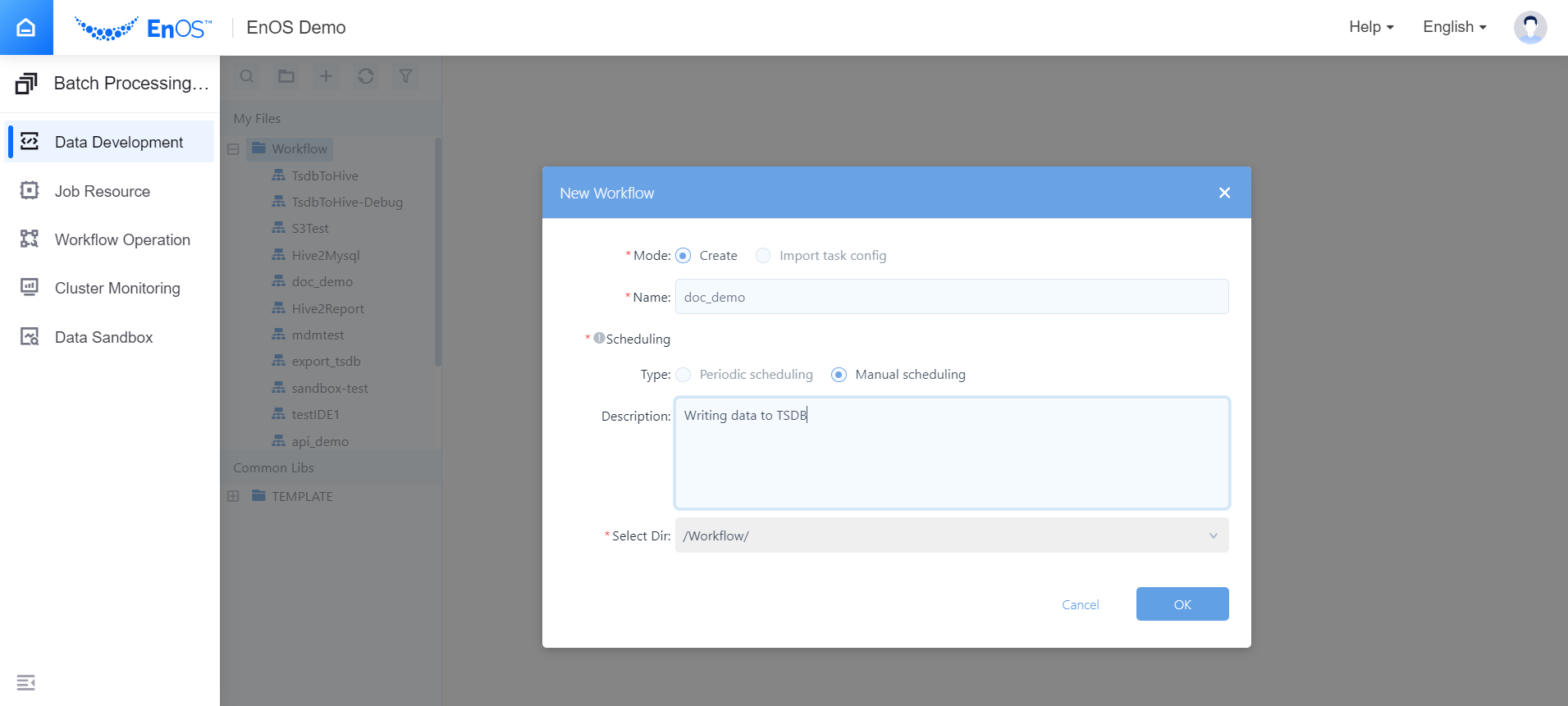
From the Component panel, drag the PYTHON task node into the workflow panel.
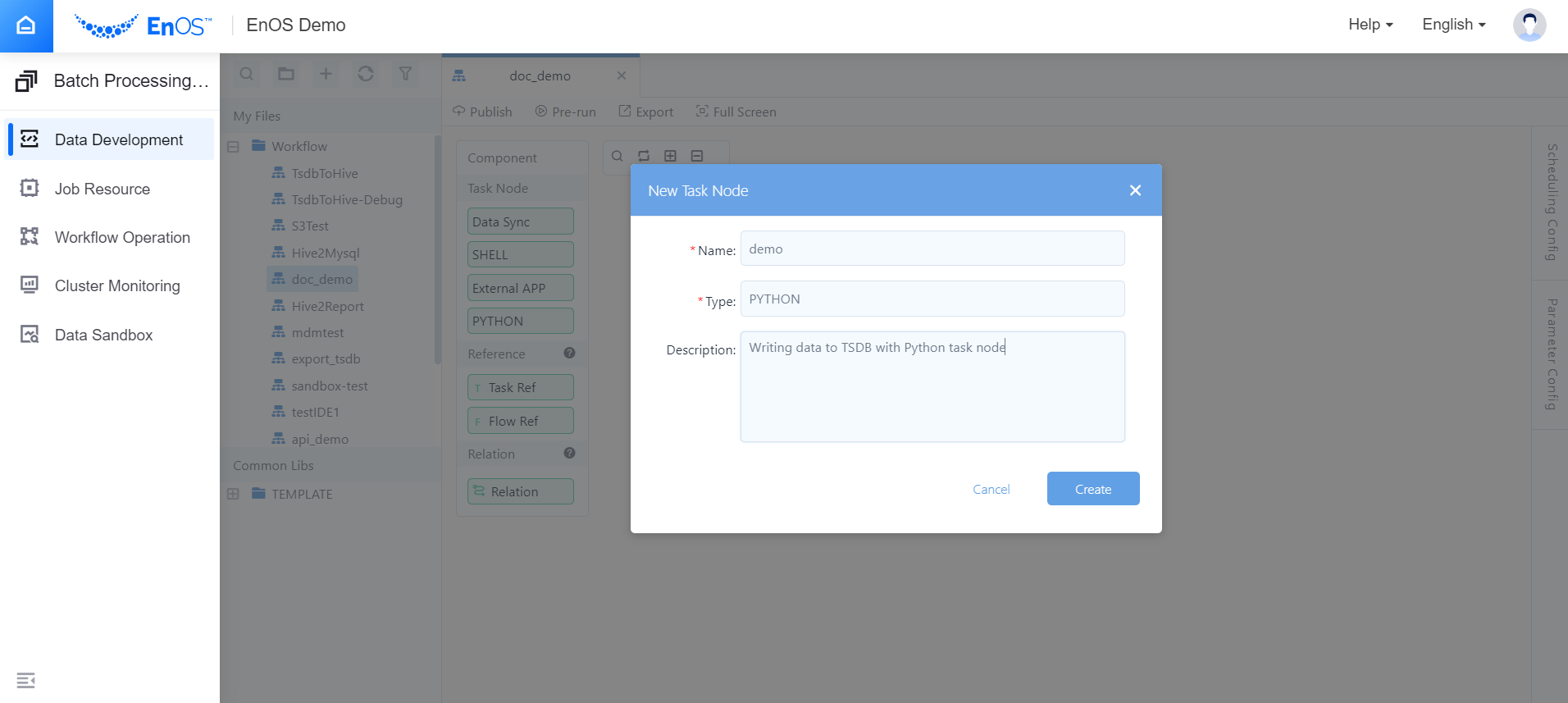
In the New Task Node window, enter the name and description of the task, and click Create. See the following example:
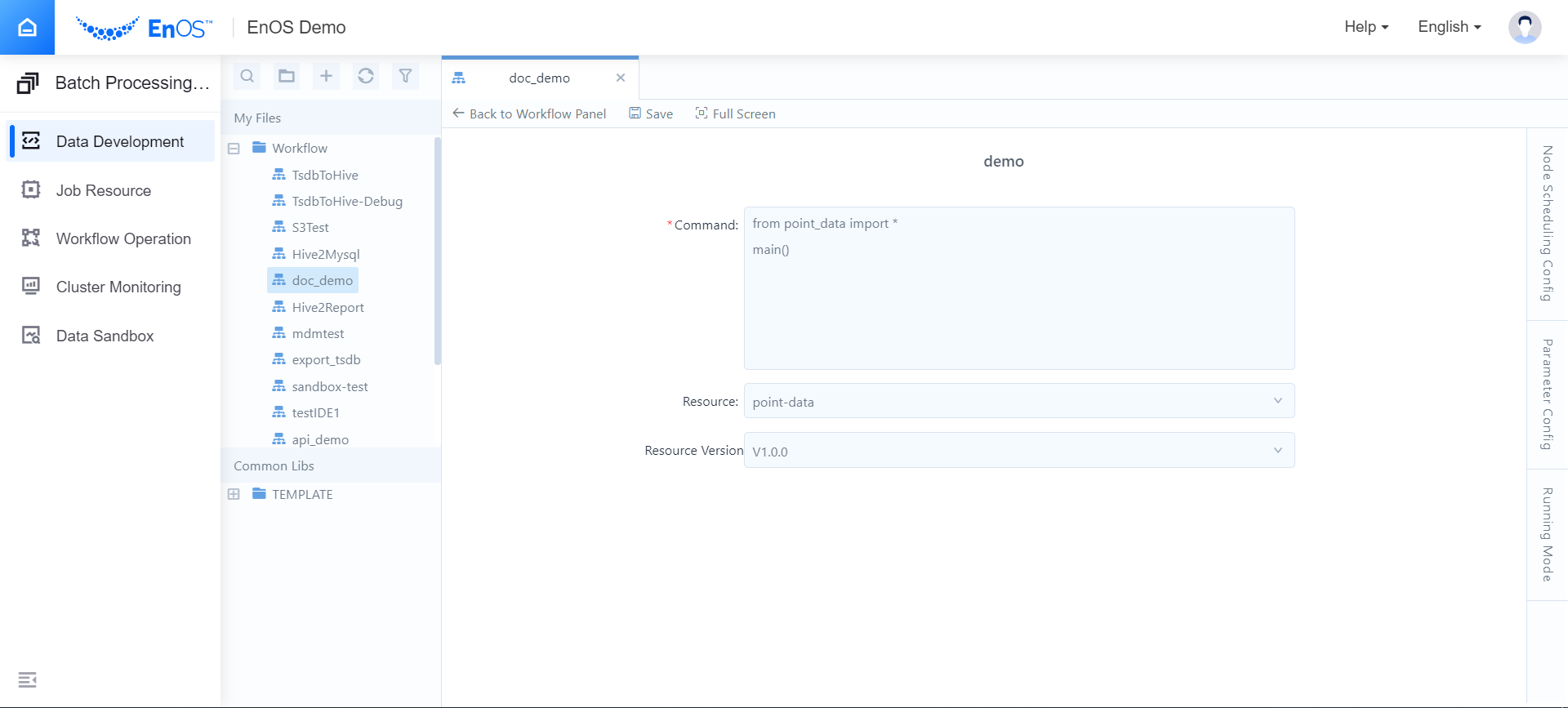
Double click the node that is created. In the Command field, enter the following command for calling the Python script:
from point_data import *
main()
From the Resource and Resource Version drop-down list, select the uploaded Python script.
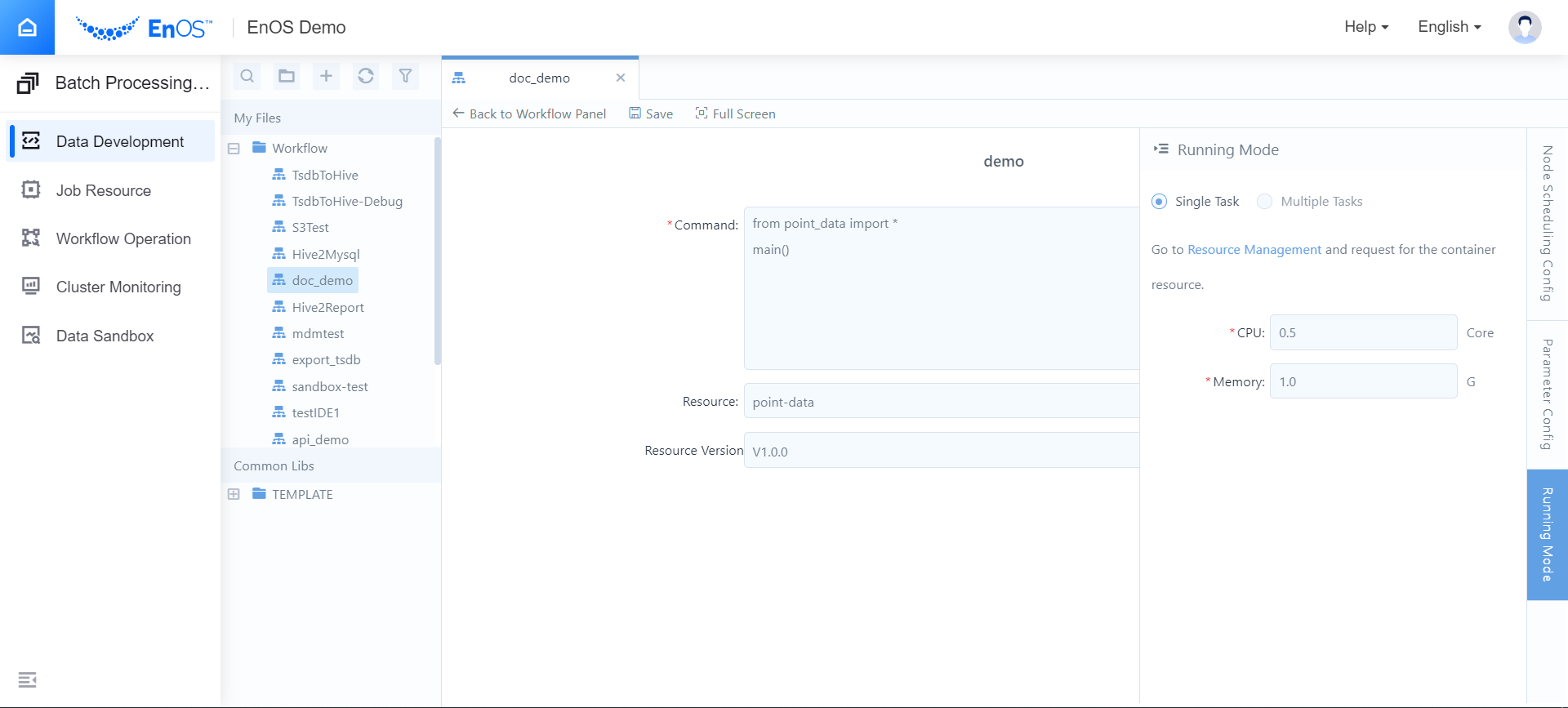
Click Running Mode at the right edge of the configuration panel and set the required resources for running the Python task. See the following example:
Click Save and Back to Workflow Panel. The workflow is created and configured.
Running the Workflow
Take the following steps to run the created workflow:
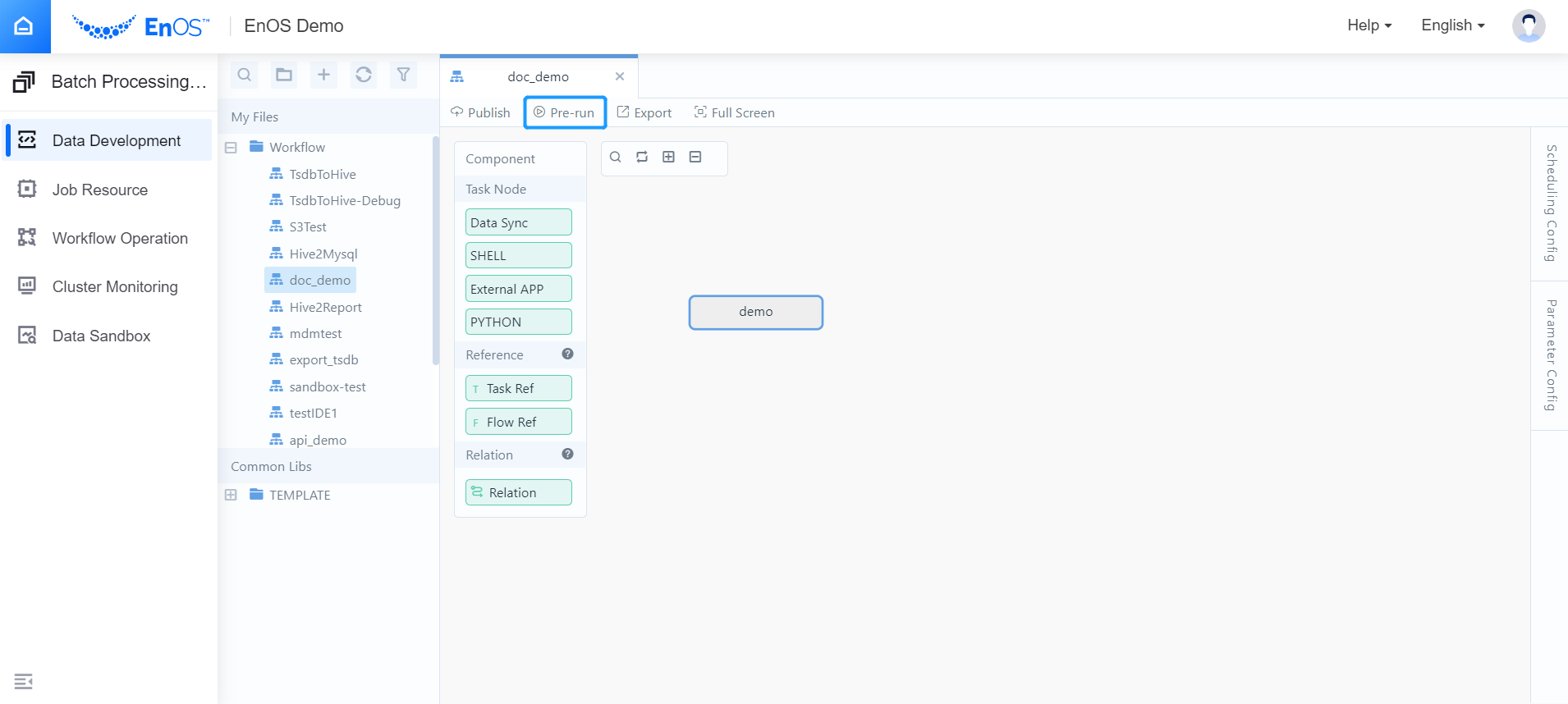
On the Workflow Panel, click Pre-run, set the Triggering Time, and click OK to test running the workflow. See the following example:
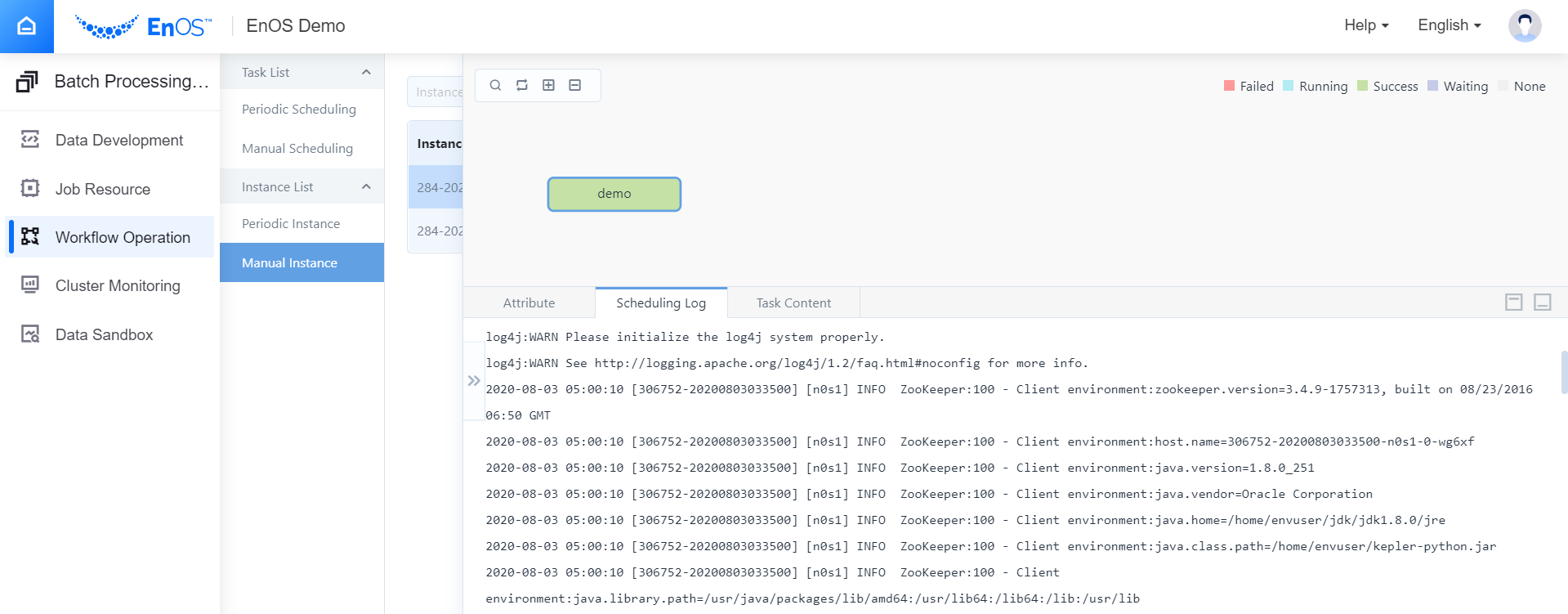
Open the Workflow Operation > Manual Instance page to view the running status of the workflow instance.
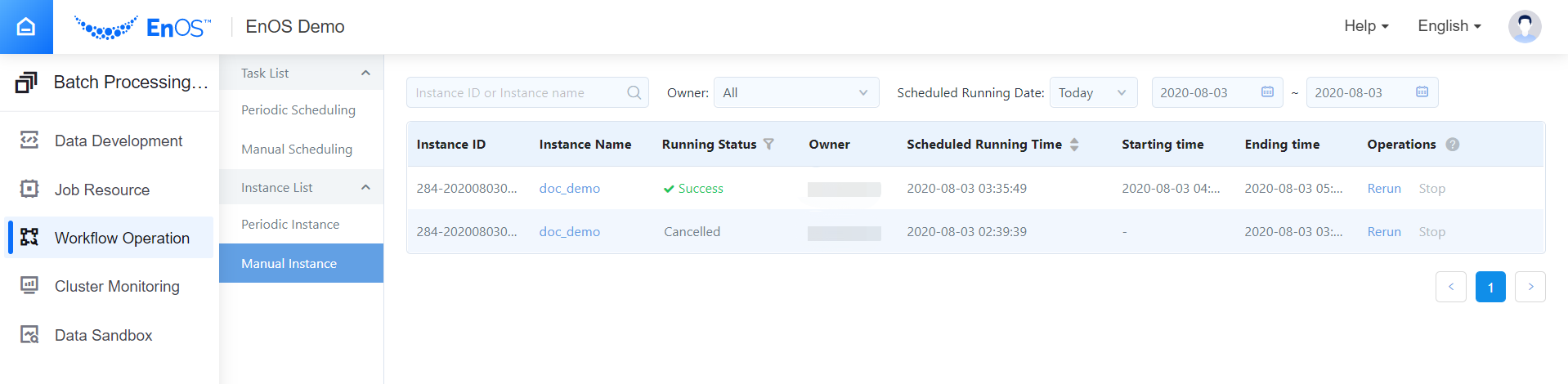
When the workflow instance runs successfully, click the instance name to view the running log.