Rich Text
The rich text widget shows richly formatted text on a dashboard page, with support for fonts, colors, links, and emoji, and can insert data fields so that the text changes with the data in real time.
For common configuration such as the title, background, padding, and style copying, see Common Configurations for Charts.
Data of Rich Text
The rich text widget accepts any number of Measurement fields. Once added, a field can be referenced in the text through a placeholder, and its value updates automatically as the data source refreshes.
For general information about data sources and data fields, see Common Configurations for Charts > Configuring Data.
Editing the Text Content
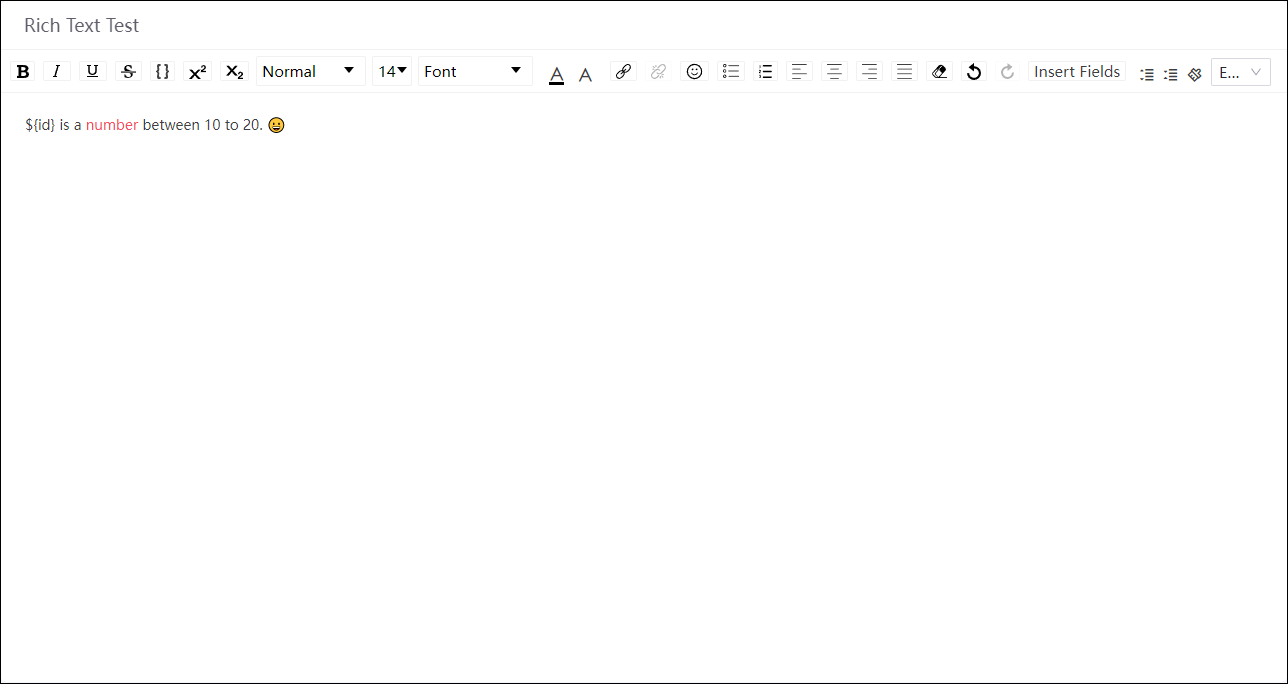
Write the content in the text editor of the widget. The toolbar provides:
Basic formatting: Bold, italic, underline, and other inline styles, paragraph type, font size, font, text color, line height, alignment, bulleted and numbered lists, clear formatting, undo, and redo.
Links and emoji: Insert a hyperlink or an emoji.
Format painter: Select text that already has the formatting you want and select the format painter, then select the target text to apply the same formatting.
Multiple languages: Write the content of the same passage per language. The page shows the version matching the language of the end user, and languages left empty fall back to the default content.
Inserting Data Fields
Select Insert Field on the toolbar and choose a field from the data fields you added to insert it into the text. While inserting, you can also specify how the field is presented:
Numeric type: You can set the decimal places, whether to show a thousands separator, and how the unit is converted.
Time type: You can set the time format.
Once inserted, the editor shows a placeholder, which is replaced by the actual value of the field at runtime.
Note
Inserting with the Insert Field button is recommended, since it lets you configure the format at the same time; the
${field_name}placeholders written by hand in earlier versions still work.When the widget cannot retrieve data, the placeholder tries to take the value of a page parameter of the same name; if that also fails, it shows
-.
Style of Rich Text
Field Style
This section is shown only once data fields have been added, and produces one configuration card per field.
Color Rules
Select Add to add a rule for that field, so that the field value inserted in the text changes its text color according to the value. Each rule contains From, To, and a color.
Note
The color rules of rich text match on strings rather than value ranges, so they suit status text, for example showing “Fault” in red. Rules are matched from top to bottom and the first rule hit takes effect. Color rules apply only to field values inserted through placeholders, not to fixed text you typed.
Carousel Effect
Carousel Effect controls how the text scrolls when the content exceeds the widget height. None by default:
None: No scrolling; the overflow has to be scrolled manually.
Scroll: The content scrolls upwards in a loop automatically.
With Scroll selected, scrolling only happens when the actual content height exceeds the widget height; short content stays still. Hovering the mouse over the widget pauses the scrolling.
Rotation Interval
Sets how long one scrolling cycle takes, in seconds, with a default of 10. The smaller the value, the faster the scrolling.
Interactions at Runtime
The widget provides the following behaviors at runtime, with no configuration needed:
Automatic scrolling decision: After rendering, the widget compares the content height with the widget height and enables scrolling only when the content overflows; it re-evaluates after the window size or the data changes.
Link jump: Hyperlinks inserted in the text can be selected directly at runtime.
Note
Rich text does not support Export Widget Data.