Topology
The topology widget presents information in a hierarchical structure and is generally used to monitor the connected assets of a site.
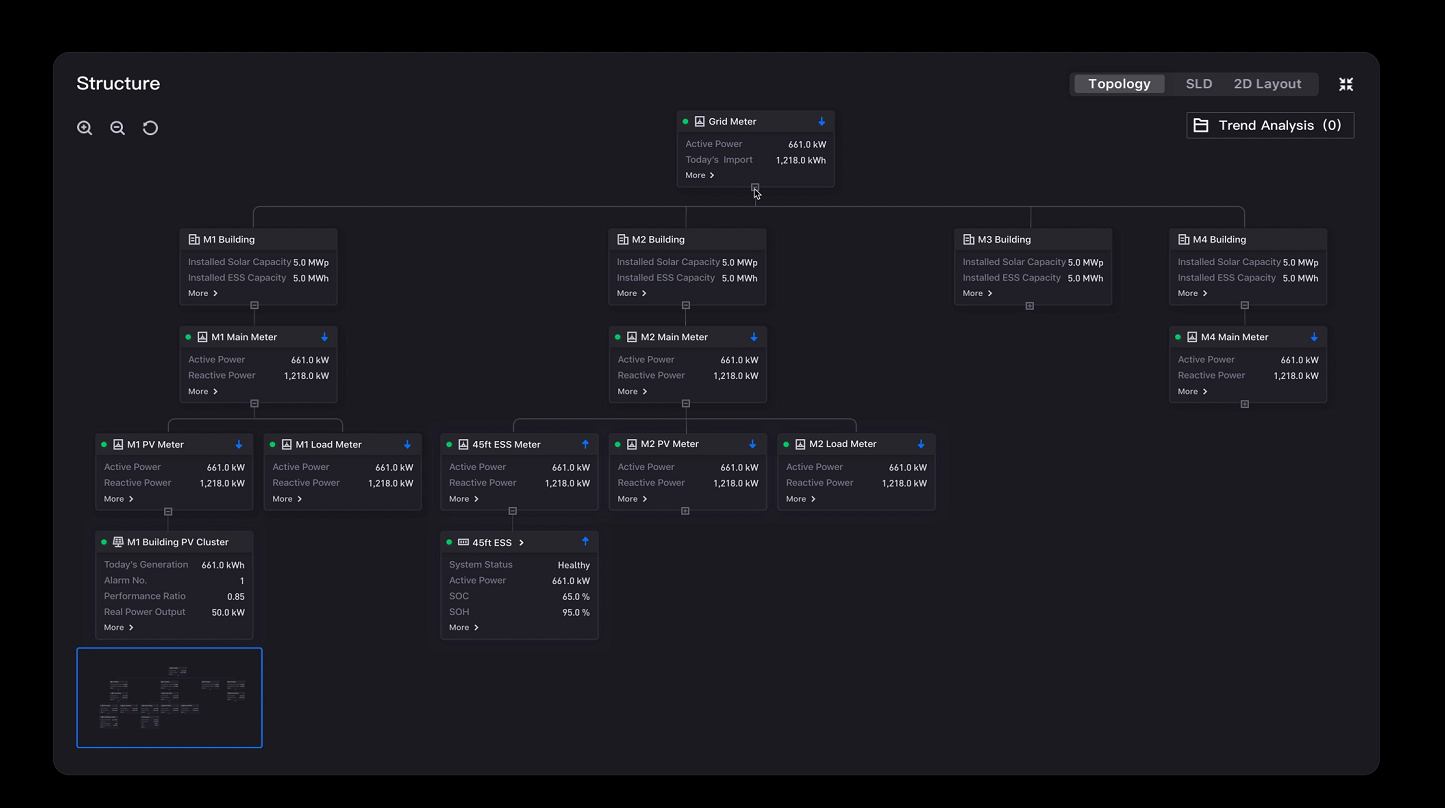
For common configuration such as the title, background, padding, and refresh frequency, see Common Configurations for Charts.
Node
The most basic unit of a topology is a node, presented as a card.
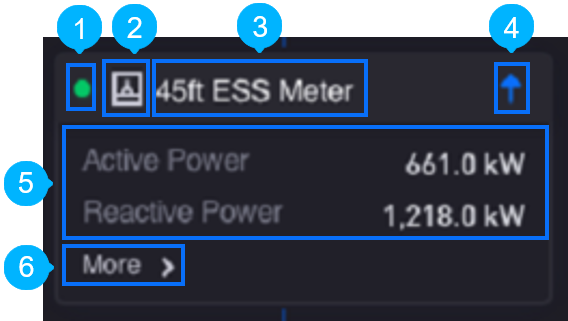
A node card can represent an asset and show the following elements of it:
No. |
Element |
Description |
|---|---|---|
|
Status |
Indicates the connection status of the asset. If data has come in within the last 20 minutes, a green dot is shown; otherwise a gray dot is shown. |
|
Icon |
Indicates the type of the widget, defined automatically from the data in the data source. |
|
Title |
Shows the name of the widget. |
|
Current Flow |
Indicates the direction of the current. An up arrow means current flowing into the asset and a down arrow means current flowing out of it. |
|
Content |
Shows the list of measurement point values. |
|
More |
Shows additional data values in a separate dialog box. |


Node Display Functions
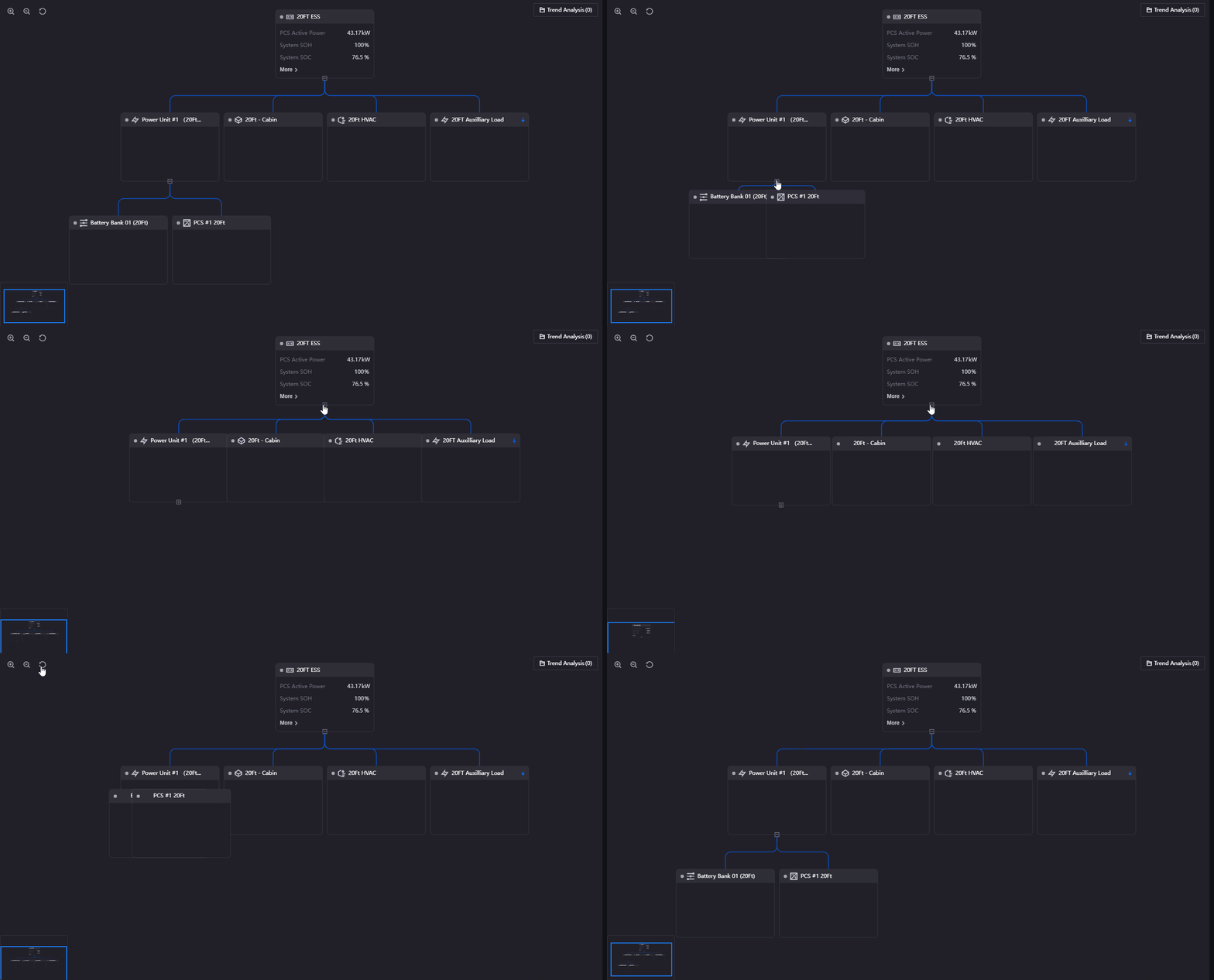
By default only the first three layers including the root node are shown and the rest are hidden.
To expand or hide child nodes, select the + and - icons at the bottom of a parent node. The icon is not shown when a node has no children. To return the graph to its default state, select Reset to Default Zoom  in the upper left corner.
Data of Topology
The topology accepts 0 to 2 dimensions and any number of measurements.
For general information about data sources and data fields, see Common Configurations for Charts > Configuring Data.
Note
Only Topology type data sources in the Common Data Service (CDS) are supported.
Source of the Topology Structure
The hierarchy of the nodes is determined not by the data fields but by the asset ID and topology rule ID in the data source parameters: the widget requests the tree structure from the Topology Source with those two parameters, and then associates each returned node with the data by asset ID.
The role of Measurement is to provide a pool of bindable fields: the title, icon, status, and current flow in the Header are all selected from the measurement fields you added.
Nodes and connections cannot be added or removed by hand in the configuration panel. To adjust the hierarchy, adjust the topology rule itself.
Style of Topology
Node Style
Topology Source
URL specifies the address of the service that provides the topology tree structure. The widget builds the node hierarchy from the tree data that address returns, which determines which assets are root nodes and which are children. A default address is preset and usually needs no change.
Header
The header configuration determines what appears in the top area of each node card. The following four items are all selected from the Measurement fields you added; once the corresponding measurement is removed, the item is cleared automatically and needs to be selected again.
Title: The field that provides the title text of the node card.
Font: Sets the font, font size, color, and style of the title text.
Interaction Settings: Configures the jump behavior when the node card title is selected. For the configuration method, see Common Configurations for Charts > Interaction Settings; placeholders can be used in the address to pass parameters, see Configuring Page Parameters.
Jumpable Model: Enter the model types whose titles are allowed to jump, separated by commas. Only when the model of a node is in that list can its title be selected to jump.
Icon: The field that provides the node icon. The widget renders the corresponding icon from the value of that field to indicate the asset type.
Status: The field that provides the connection status of the node. The widget shows an online or offline status dot from the value of that field.
Current Flow: The field that provides the current direction. The widget shows an up arrow (flowing in) or a down arrow (flowing out) from the value of that field.
Content
The content area shows the list of measurement point names and values in the body of a node card.
Name Font: Sets the font, font size, color, and style of the measurement point names.
Value Font: Sets the font, font size, color, and style of the measurement point values.
Decimal Places: Rounds the value to the specified number of places, with a default of 2.
Convert Unit: When selected, the unit switches automatically according to the size of the value, for example converting a large W value to kW or MW. Cleared by default.
Unit Font: Sets the font, font size, color, and style of the unit labels.
Other Settings
Trend Analysis Hyperlink
URL specifies the address of the trend analysis page. After an end user selects Start Analysis in the trend analysis panel, the widget embeds that address in a popup and passes the selected measurement points as parameters.
Trend analysis in the topology is a built-in runtime feature of the widget: you only configure the target address here, with no need to enable it per metric as in the metric card, table, and progress bar.
Interactions at Runtime
The topology behaves as follows at runtime:
Trend analysis: Requires Trend Analysis Hyperlink to be configured first. Selecting a measurement point in the node content adds it to trend analysis and the widget reports Added to Trend Analysis box. Selecting the Trend Analysis button on the widget opens the panel, which lists the points added and lets you remove them one by one or clear them all; selecting Start Analysis opens the trend page.
Viewing more data: Selecting More on a node card opens a dialog box listing the remaining fields of that node, grouped into Measurement Point, Metrics, and Attributes. Only measurement points and metrics can be added to trend analysis.
Expanding and collapsing: Right-click the collapse icon to choose Expand Next Layer or Expand All. The expansion state is remembered and preserved when the page is reopened.
Zooming and panning: The toolbar in the upper left corner provides Zoom In, Zoom Out, and Reset to Default Zoom; the canvas can be dragged to pan, and a thumbnail sits in the lower right corner.
Title jump: When Interaction Settings is configured and the model of the node is in the Jumpable Model list, selecting the title performs the jump.
Note
The topology supports neither exporting widget data, widget linkage, nor style copying.